Blog · · 4 min read
How to use reads.city for weekend reading clubs
reads.city is a local reading discovery platform: places to read, books to explore, and reading clubs in your city. This guide is for your weekend reading club. You find a club, go to its meetup with the book you are reading, check in, and read together in quiet.
1. Find your city
Open reads.city/cities and search for your city by name. Live cities have at least one reading club, and some also list book cafes where you can read. The ones marked coming soon do not have a club yet.
A city goes live with its first club. If you run a reading club in a city that is not live, or want to start one, message reads.city on Instagram or email hello@reads.city.
2. Pick a club and check its next meetup
Your city’s page shows this weekend’s meetups and every club in the city. Open a club to see its page, which has:
- the date, time and place of the next meetup, with a map link
- the club’s own steps for the meetup: when to arrive, how the session runs and what to bring
- the organizer’s name and a link to message them
A club with no date yet shows its next meetup as to be announced, and a club taking a break says so on its page.
3. Sign in with Google
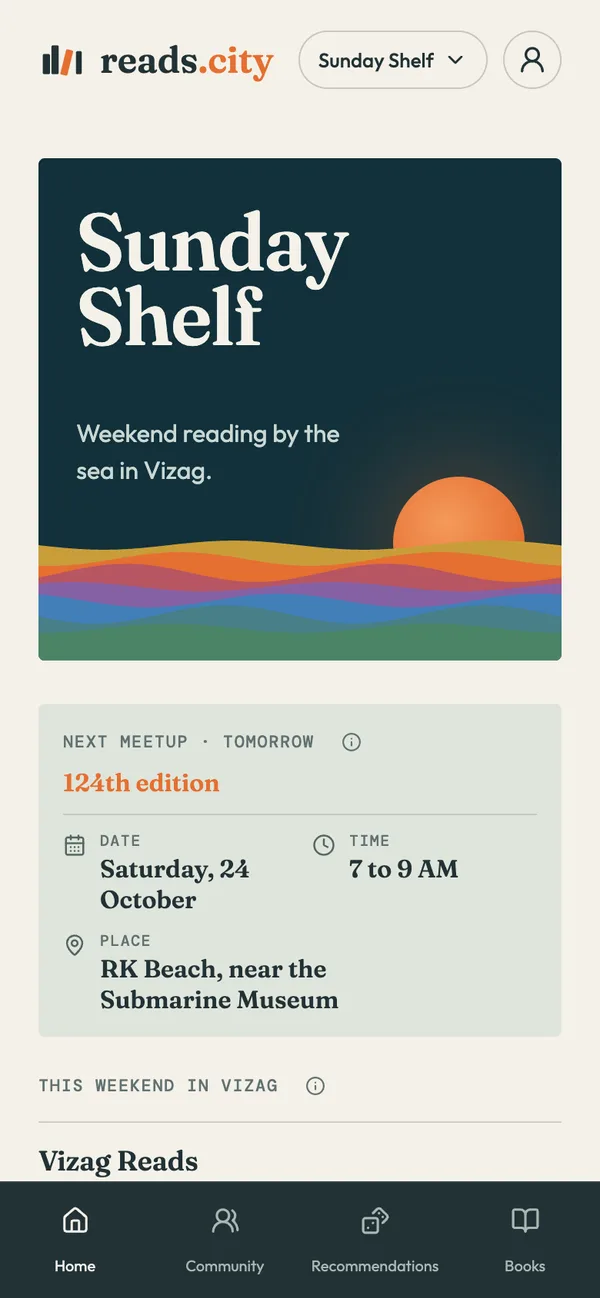
Open your club’s page and tap Check in. You sign in with your Google account, so you have no password to make or remember, and checking in joins you to the club.
Your email address is never shown to other readers or to organizers.
4. Check in at the meetup
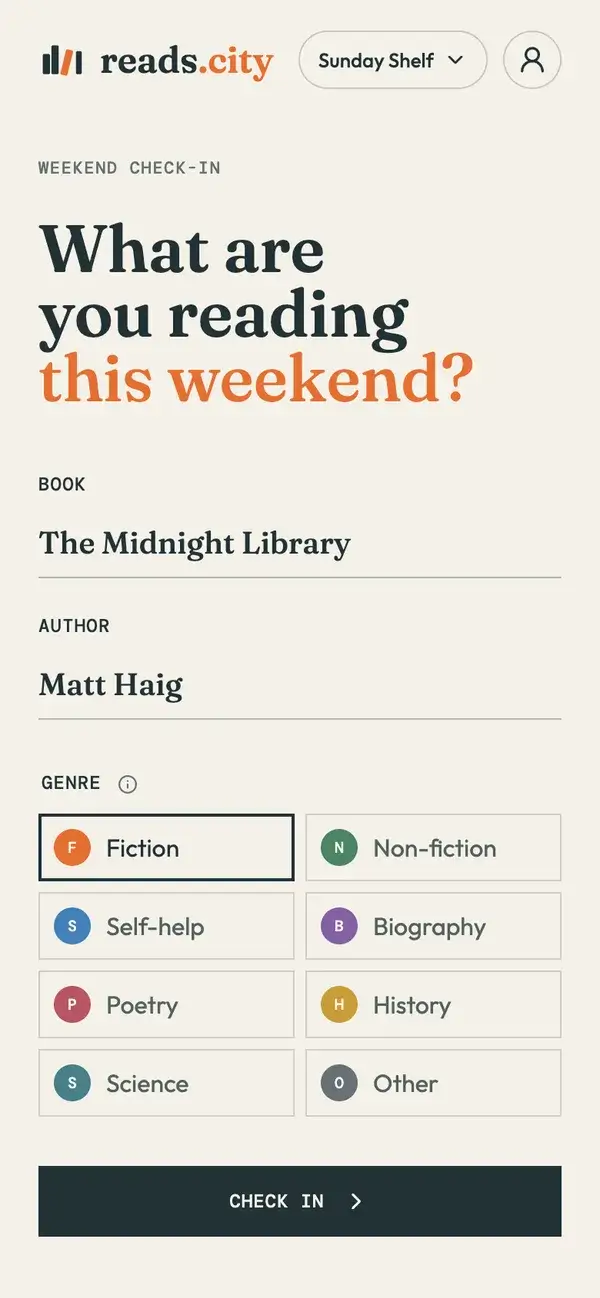
Bring the book you are reading. An e-reader works too. At the meetup, open reads.city and tap Check in, either in the app or on your club’s page. Then add the book, its author and its genre. It takes a few seconds.
- if you are still on last week’s book, tap Still reading it? to fill it in again
- book titles you have used before fill in their author and genre as you type
- if more than one meetup is on, pick the one you are at
If you have already checked in for the meetup, Check in on the club page takes you to Community instead of the form. Check-in opens when your club has a meetup scheduled. If none is scheduled, the app says so instead of showing the form.
5. Read
Put your phone on silent and read your own book. Everyone reads their own book, together. There is no set book to finish and no discussion to prepare for.
6. Hold up your Reading Colour
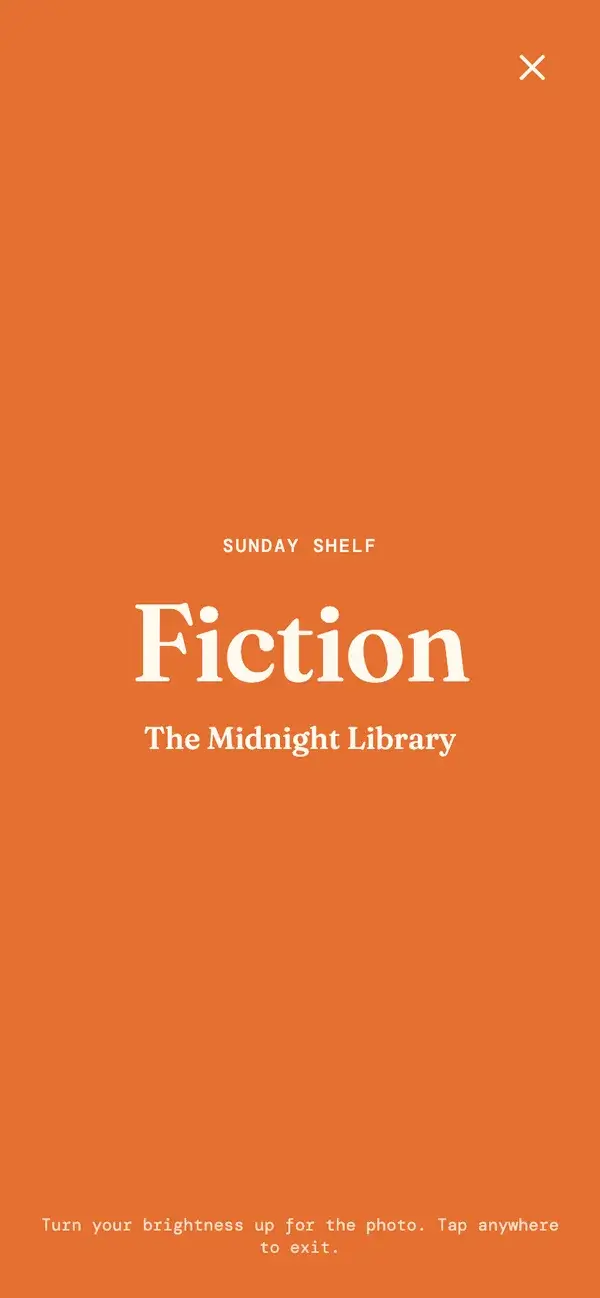
Each genre has a colour. During the group photo, open Reading Colours and hold up your phone. Your screen turns your genre’s colour and shows your club’s name and your book, so the photo shows the mix of genres in the room.
The screen stays awake while Reading Colours is open. Tap anywhere to close it.
7. Discover books around you
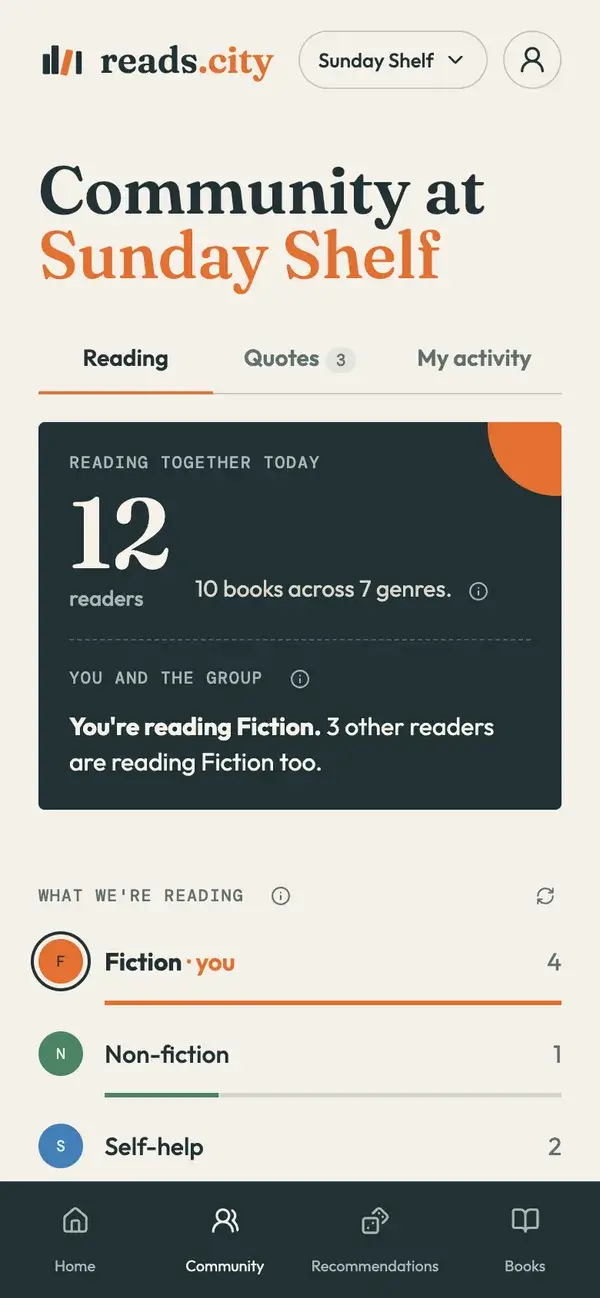
Open Community to see how many readers checked in, the mix of genres and every book being read. You can filter the list by genre. You and the group shows you, privately, how many others share your genre or your book.
Names are never shown here, so nobody can see who is reading what.
8. Share a quote
Share a line you loved from the book you checked in with, in up to 500 characters. Each quote appears on a card in its genre’s colour with no name on it, and you can delete your own quotes at any time.
9. Lend and borrow books
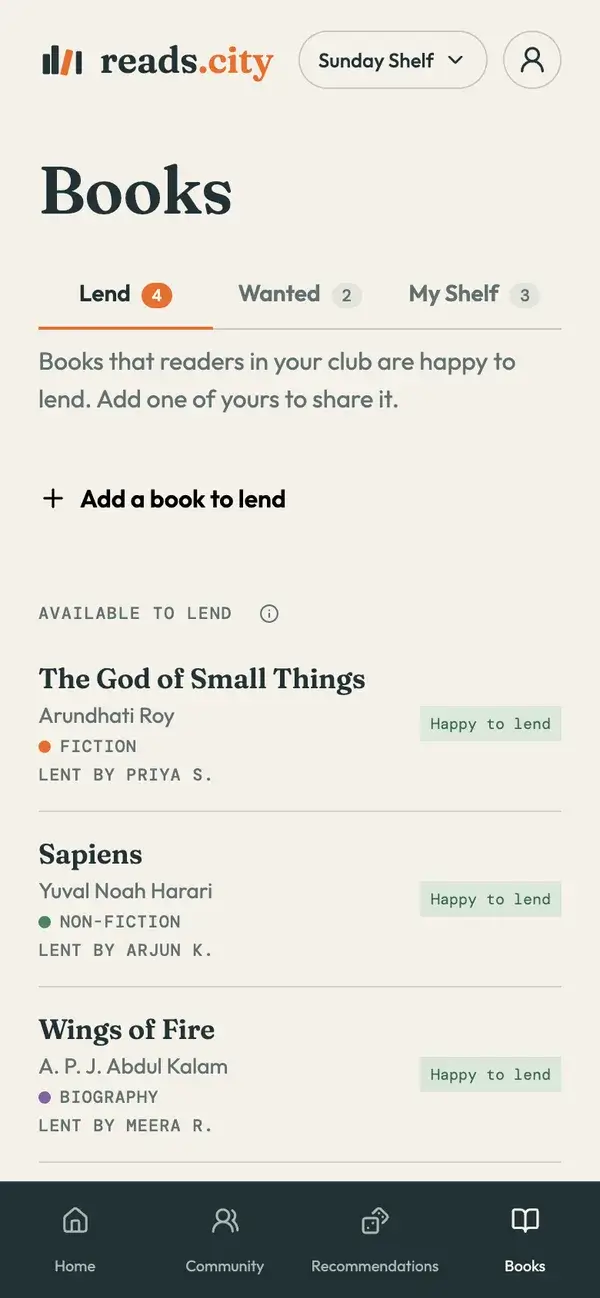
In Books, mark the books you are happy to lend under Lend, and the ones you are looking for under Wanted. Books change hands in person at a meetup, and it costs nothing.
Your display name is shown next to books you offer to lend or are looking for, so other readers know whom to ask.
10. Find your next book
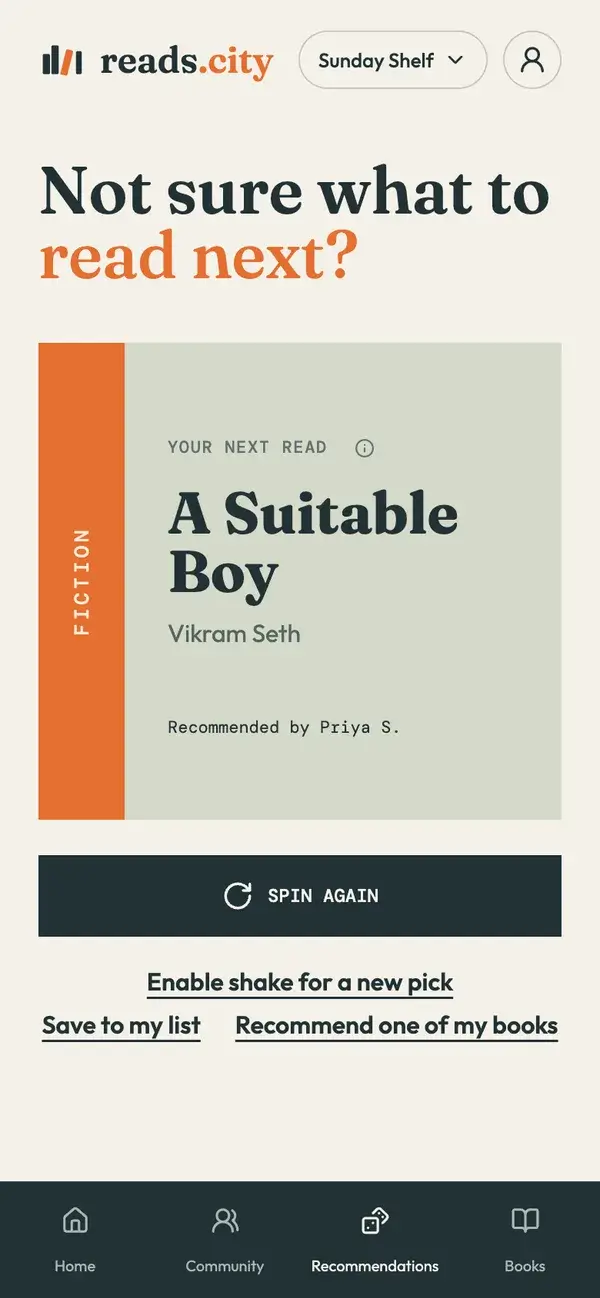
Recommendations shows you a book that another reader in your club recommends. Tap Spin again, or shake your phone, for a different one. You can save a pick to your shelf, or recommend one of your own books.
Each pick shows the name of the reader who recommended it.
11. Look back at your reading
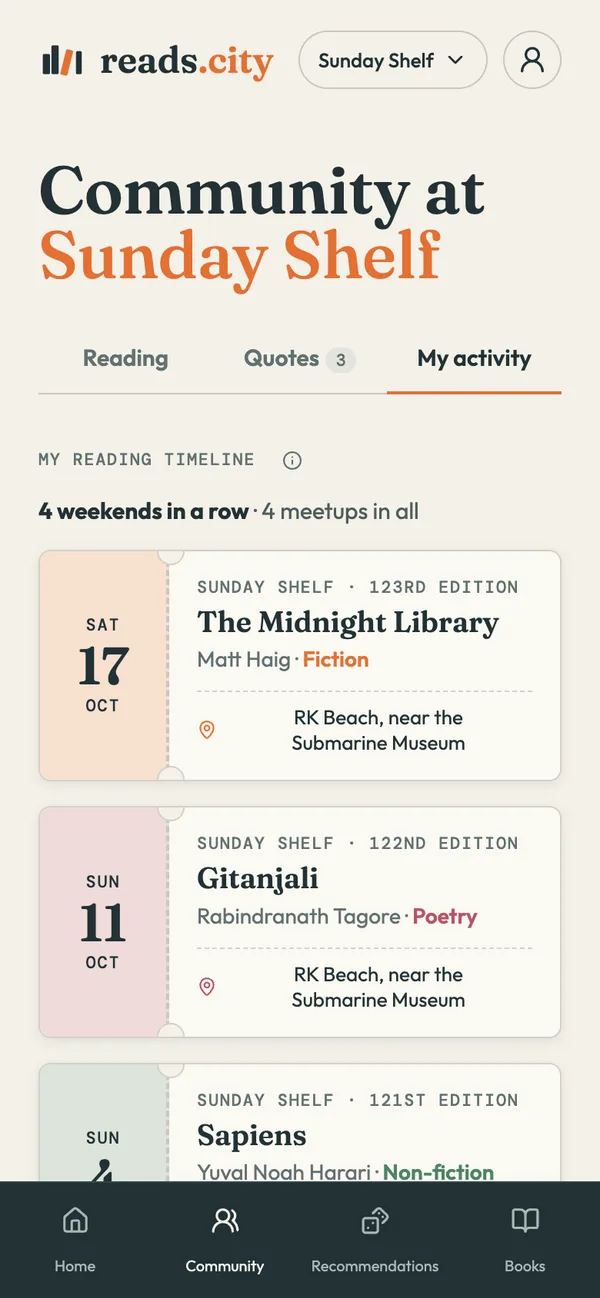
My activity, on your Profile, is your own timeline: every meetup you came to, with the date, the club, the place and the book you brought, across all your clubs. Only you see it.
12. Check in at a book cafe
Some cities list book cafes with a shelf you can read from. Open the cafe’s page from your city’s page. Tell other readers what you are reading there: the book, its author and its genre.
You can check in on every visit, with the same book or a new one. Once you have checked in, the page shows your reading, which you can edit, and the books other readers picked up at the cafe this month. Names are never shown.
13. Add reads.city to your home screen
You do not need to download anything from an app store. When your browser offers to add reads.city to your home screen, accept, and it will open like an app at your next meetup.
If your city is not on reads.city yet, or something in this guide does not match what you see, email hello@reads.city or message reads.city on Instagram.